> For the complete documentation index, see [llms.txt](https://docs.ama.one/llms.txt). Markdown versions of documentation pages are available by appending `.md` to page URLs; this page is available as [Markdown](https://docs.ama.one/wallet/creating-a-wallet/chrome-extension-wallet/3.-importing-an-existing-wallet.md).
# 3. Importing an Existing Wallet
Learn how to import an existing Amadeus wallet using your Seed64.
### Overview
If you already have a wallet with a Seed64, you can import it into the extension to access your funds and transaction history.
### Prerequisites
* Your Seed64 (64-byte seed, Base58-encoded string)
* Access to the wallet extension
### Step-by-Step Guide
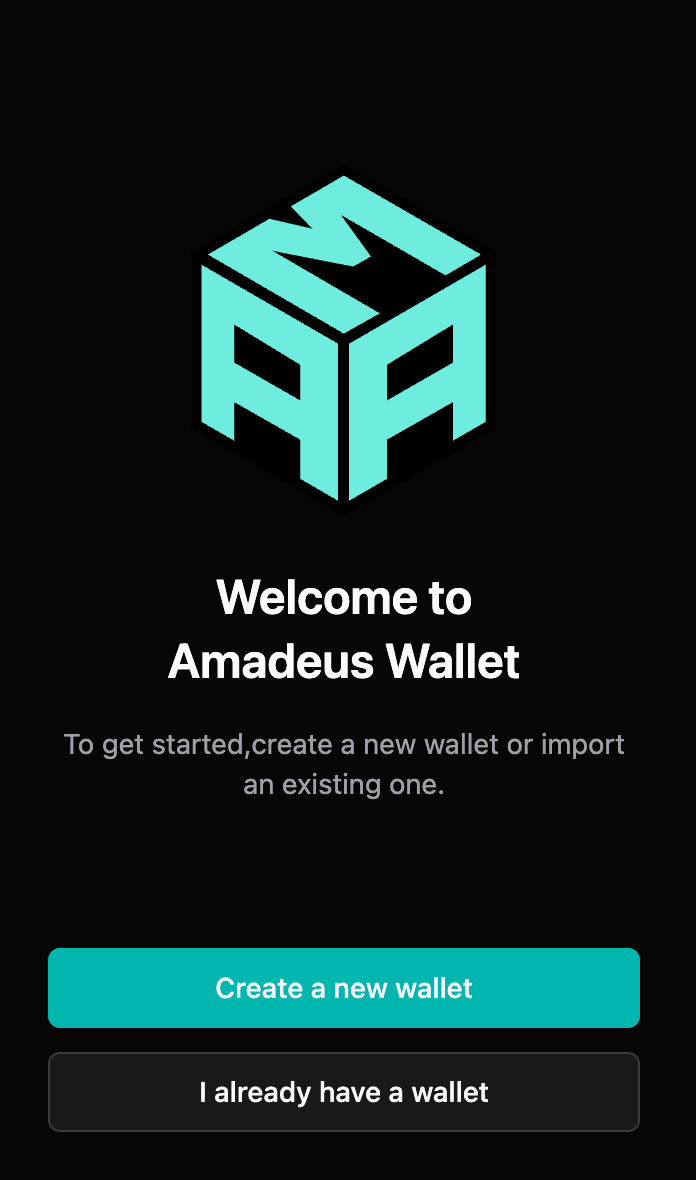
#### Step 1: Choose "I already have a wallet"
When you first open the extension, click **"Import Existing Wallet"** on the onboarding screen.
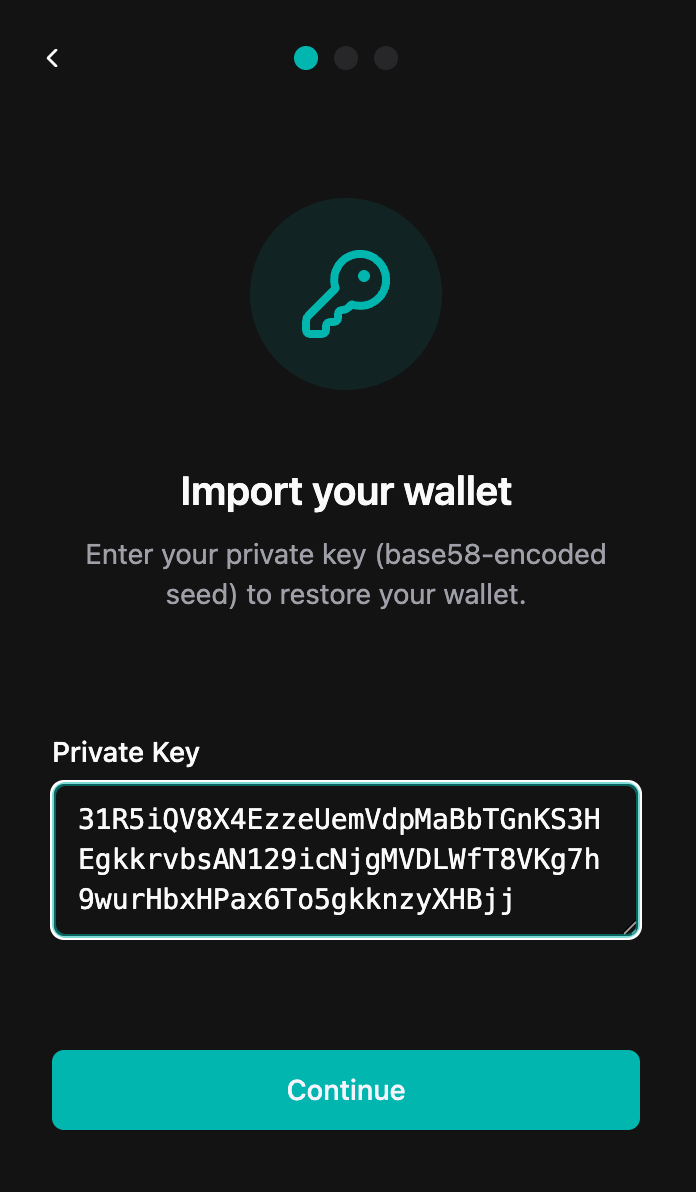
#### Step 2: Enter Your Seed64
1. Enter your Seed64
* Paste your Seed64 string (Base58-encoded, typically 87-88 characters)
* The extension will validate the format as you type
* Ensure you have the complete Seed64 string
2. **Double-check your entry**
* Verify all characters are correct
* Ensure no characters are missing
* Check for any extra spaces or line breaks
* The Seed64 should be a single continuous string
3. Click **"Continue"**
> ⚠️ **Security Note**: Make sure you're entering your Seed64 in a private, secure location. Never share your Seed64 with anyone.
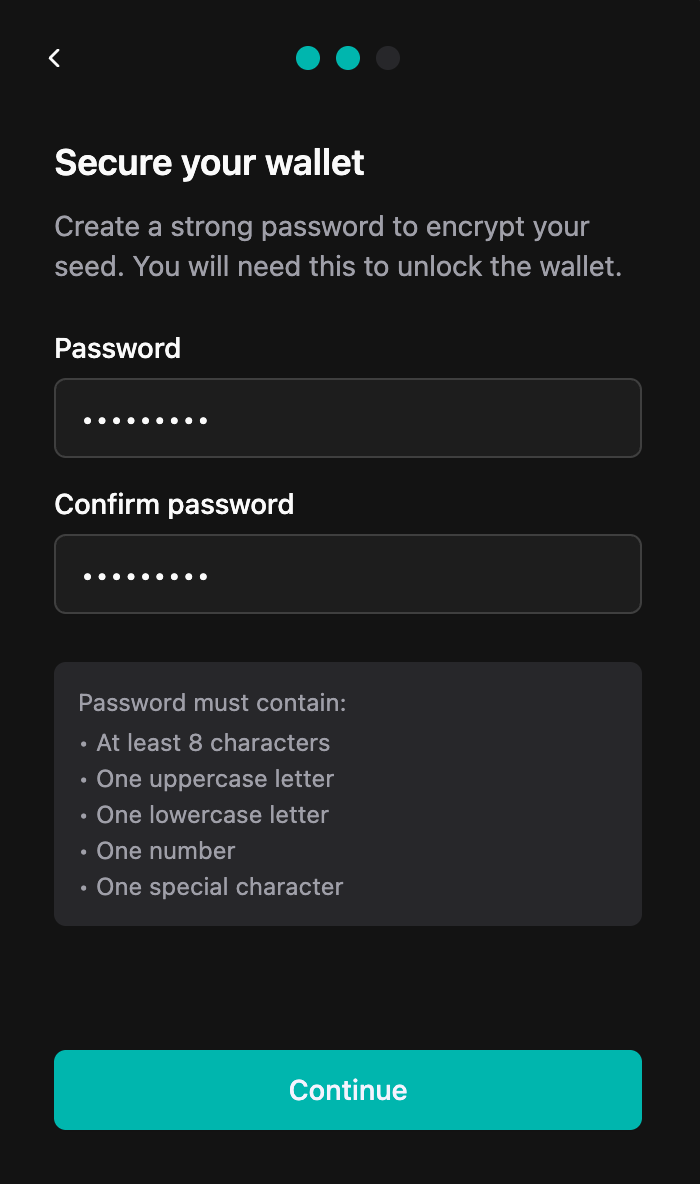
#### Step 3: Set Password
1. Create a password for this wallet instance
* This password protects the wallet on this device
* It can be different from passwords used on other devices
* Minimum 8 characters recommended
2. Confirm your password
* Re-enter the password to confirm
* Click **"Continue"**
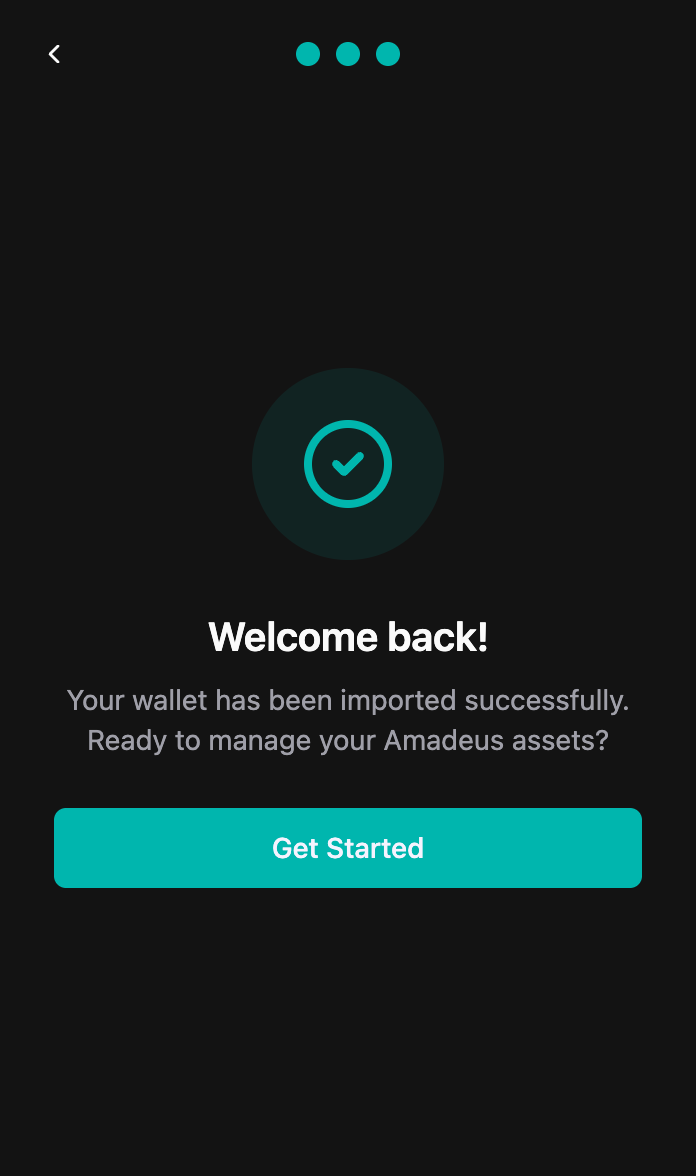
#### Step 4: Wallet Imported Successfully
Your wallet has been successfully imported!
* Your wallet address will be displayed
* Your balance and transaction history will sync
* Click **"Get Started"** to access your wallet
### Verification
After importing, verify that:
* ✅ Your wallet address matches your expected address
* ✅ Your balance is correct (may take a moment to sync)
* ✅ Your transaction history appears (if any)
### Troubleshooting
#### "Invalid Seed64" error
**Possible causes:**
* Incorrect Seed64 format
* Missing characters
* Extra spaces or line breaks
* Invalid Base58 encoding
**Solutions:**
* Double-check your Seed64 against your original backup
* Ensure the complete Seed64 string is entered
* Remove any extra spaces or line breaks
* Verify you're using the correct Seed64 for this wallet
* Ensure it's a valid Base58-encoded string (87-88 characters)
#### Balance not showing
**Possible causes:**
* Network connection issues
* Wrong network selected (Mainnet vs Testnet)
* Transaction history still syncing
**Solutions:**
* Check your internet connection
* Verify network settings in Settings → Networks
* Wait a few moments for sync to complete
* Refresh the extension
#### Transaction history missing
* Transaction history may take a few moments to load
* Ensure you're on the correct network (Mainnet/Testnet)
* Check that the wallet address matches your expected address
### Security Reminders
* ✅ Only import wallets on trusted devices
* ✅ Ensure your device is secure and malware-free
* ✅ Never share your Seed64
* ✅ Use a strong password for the wallet
* ✅ Consider using a hardware wallet for large amounts
### What's Next?
* [Unlock your wallet to access your dashboard](/wallet/creating-a-wallet/chrome-extension-wallet/4.-unlocking-your-wallet.md)
* [View your transaction history](/wallet/creating-a-wallet/chrome-extension-wallet/7.-transaction-history.md)
* [Send tokens if you have a balance](/wallet/creating-a-wallet/chrome-extension-wallet/5.-sending-tokens.md)
* [Configure network settings if needed](/wallet/creating-a-wallet/chrome-extension-wallet/9.-network-settings.md)