> For the complete documentation index, see [llms.txt](https://docs.ama.one/llms.txt). Markdown versions of documentation pages are available by appending `.md` to page URLs; this page is available as [Markdown](https://docs.ama.one/wallet/creating-a-wallet/chrome-extension-wallet/4.-unlocking-your-wallet.md).
# 4. Unlocking Your Wallet
Learn how to unlock your Amadeus wallet to access your funds and perform transactions.
### Overview
Your wallet automatically locks after a period of inactivity for security. You'll need to unlock it with your password to access your funds and perform transactions.
### When You Need to Unlock
You'll be prompted to unlock your wallet when:
* You first open the extension after installation
* The wallet has been locked due to inactivity
* You manually locked the wallet from Settings
* You restart your browser
### Unlocking Process
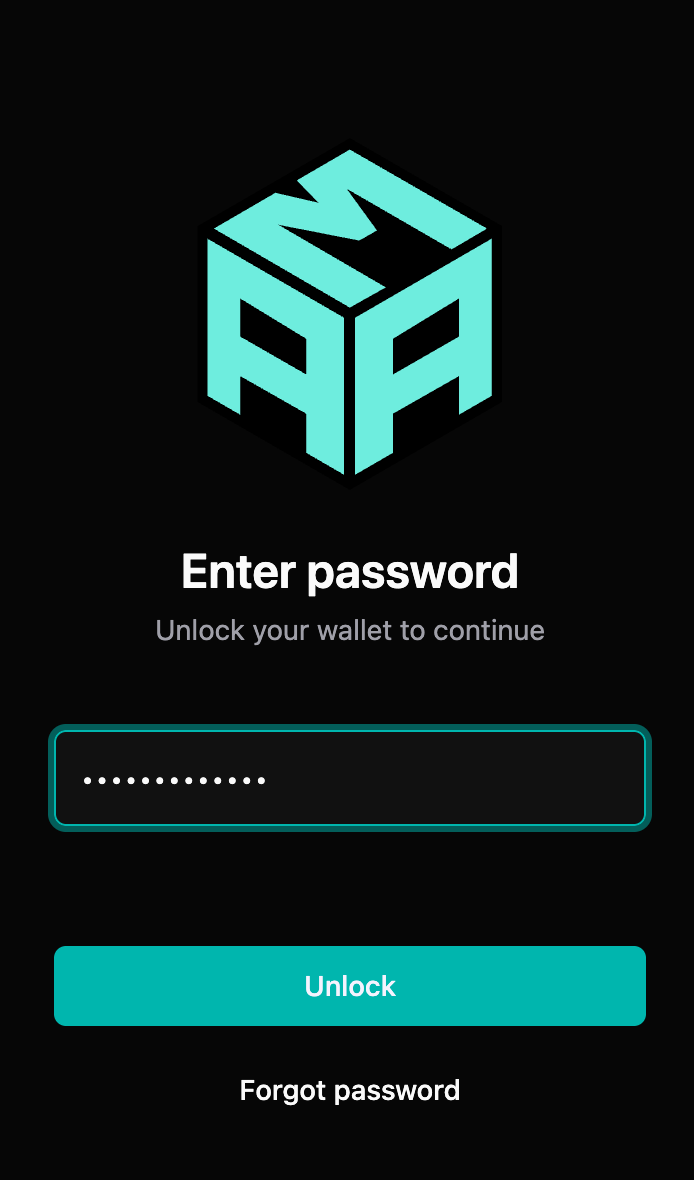
#### Step 1: Enter Password
1. Open the Amadeus Wallet Extension
2. Enter your wallet password
3. Click **"Unlock"**
> 💡 **Tip**: If you've forgotten your password, you can reset it using your Seed64 via "Forgot Password".
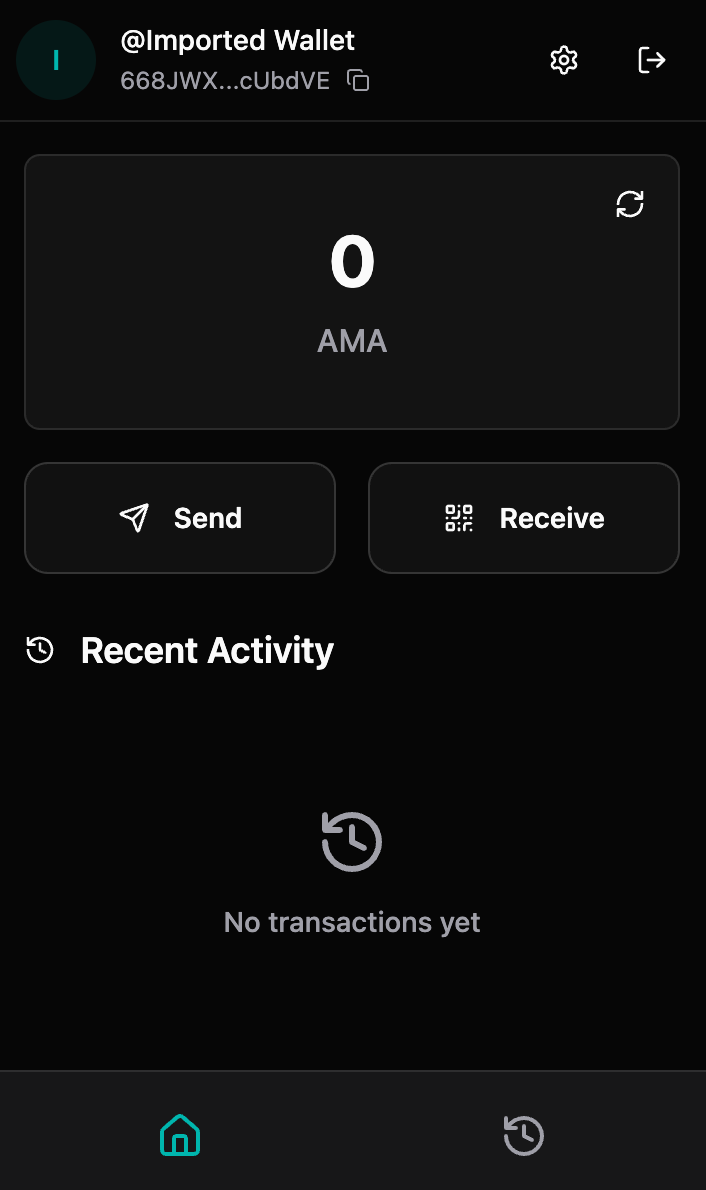
#### Step 2: Access Granted
Once unlocked, you'll be taken to your dashboard where you can:
* View your balance
* Send and receive tokens
* View transaction history
* Access all wallet features
### Auto-Lock Feature
The wallet automatically locks after a period of inactivity to protect your funds. The default auto-lock duration is **15 minutes** (configurable up to 30 minutes or more).
#### Configuring Auto-Lock
You can change the auto-lock duration in Settings:
1. Go to **Settings** → **Security & Privacy**
2. Find **"Auto-lock Duration"**
3. Select your preferred duration:
* 5 minutes
* 15 minutes (default)
* 30 minutes
* 1 hour
* Never (not recommended)
> ⚠️ **Security Warning**: Setting auto-lock to "Never" means your wallet stays unlocked until you manually lock it. This is less secure and not recommended.
### Manual Locking
You can manually lock your wallet at any time:
1. Go to **Settings**
2. Click **"Lock Wallet"** button at the bottom
3. Your wallet will be locked immediately
Alternatively, you can lock from the dashboard:
* Click the lock icon in the header
* Or use the lock button in Settings
### Forgot Password
If you've forgotten your password:
1. Click **"Forgot Password"** on the unlock screen
2. Enter your Seed64 (Base58-encoded string)
3. Create a new password
4. Confirm the new password
5. Your wallet will be unlocked with the new password
> ⚠️ **Important**: You must have your Seed64 to reset your password. Without it, you cannot access your wallet.
### Security Best Practices
* ✅ Use a strong, unique password
* ✅ Enable auto-lock for security
* ✅ Lock your wallet when leaving your device unattended
* ✅ Never share your password
* ✅ Consider using a password manager for your wallet password
* ❌ Don't disable auto-lock
* ❌ Don't write your password in plain text
### Session Management
When your wallet is unlocked:
* Your session remains active until auto-lock triggers
* Performing actions extends your session
* Closing the extension popup doesn't lock the wallet
* The wallet stays unlocked in the background until auto-lock
### Troubleshooting
#### "Incorrect password" error
**Possible causes:**
* Typo in password
* Caps Lock enabled
* Wrong password for this wallet
**Solutions:**
* Double-check your password entry
* Verify Caps Lock is off
* Try typing the password slowly
* Use "Forgot Password" if needed
#### Wallet won't unlock
* Ensure you're using the correct password
* Check that your browser extension is up to date
* Try refreshing the extension page
* If all else fails, use "Forgot Password" with your Seed64
### What's Next?
Once unlocked, you can:
* [Send tokens](/wallet/creating-a-wallet/chrome-extension-wallet/5.-sending-tokens.md)
* [Receive tokens](/wallet/creating-a-wallet/chrome-extension-wallet/6.-receiving-tokens.md)
* [View transaction history](/wallet/creating-a-wallet/chrome-extension-wallet/7.-transaction-history.md)
* [Sign transactions from dApps](/wallet/creating-a-wallet/chrome-extension-wallet/8.-signing-transactions.md)