> For the complete documentation index, see [llms.txt](https://docs.ama.one/llms.txt). Markdown versions of documentation pages are available by appending `.md` to page URLs; this page is available as [Markdown](https://docs.ama.one/wallet/creating-a-wallet/chrome-extension-wallet/5.-sending-tokens.md).
# 5. Sending Tokens
Learn how to send AMA tokens to other addresses using the Amadeus Wallet Extension.
### Overview
Sending tokens allows you to transfer AMA tokens from your wallet to another address on the Amadeus blockchain.
### Prerequisites
* Wallet must be unlocked
* Sufficient balance in your wallet
* Recipient's wallet address
### Step-by-Step Guide
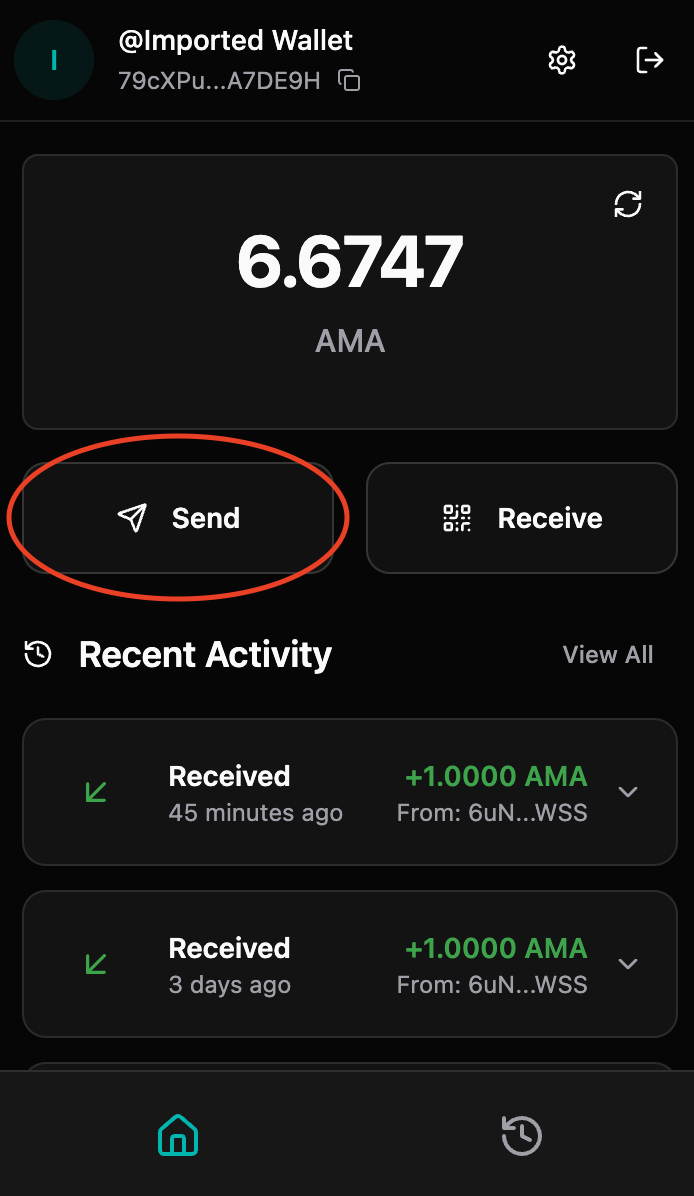
#### Step 1: Access Send Page
1. Open the Amadeus Wallet Extension
2. Ensure your wallet is unlocked
3. Click **"Send"** button on your dashboard
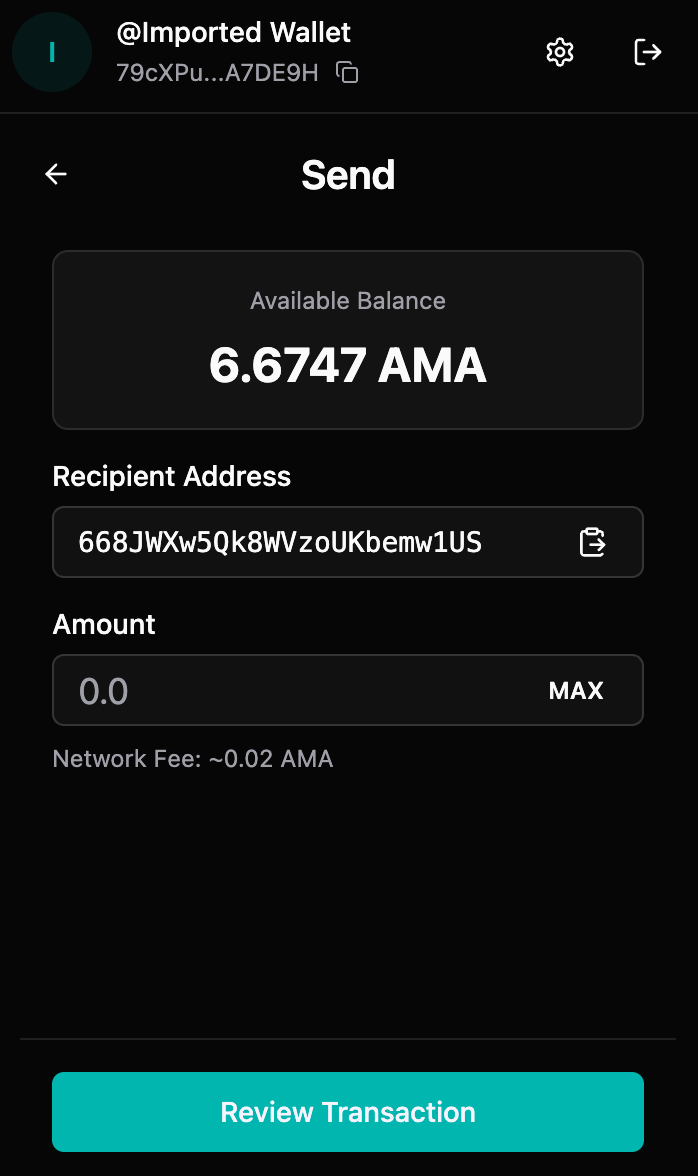
#### Step 2: Enter Recipient Address
1. In the **"To"** field, enter the recipient's wallet address
* You can paste the address directly
* The extension validates the address format
* Invalid addresses will show an error
2. **Verify the address** before proceeding
* Double-check each character
* Ensure it's the correct address (transactions cannot be reversed)
* Consider copying and pasting to avoid typos
#### Step 3: Enter Amount
1. In the **"Amount"** field, enter the amount you want to send
* You can enter a decimal number (e.g., 100.5)
* The amount is in AMA tokens
* Your available balance is shown below the field
2. **Check your balance**
* Ensure you have enough tokens
* Remember: Transaction fees may apply
* The extension will warn you if balance is insufficient
3.
```
```
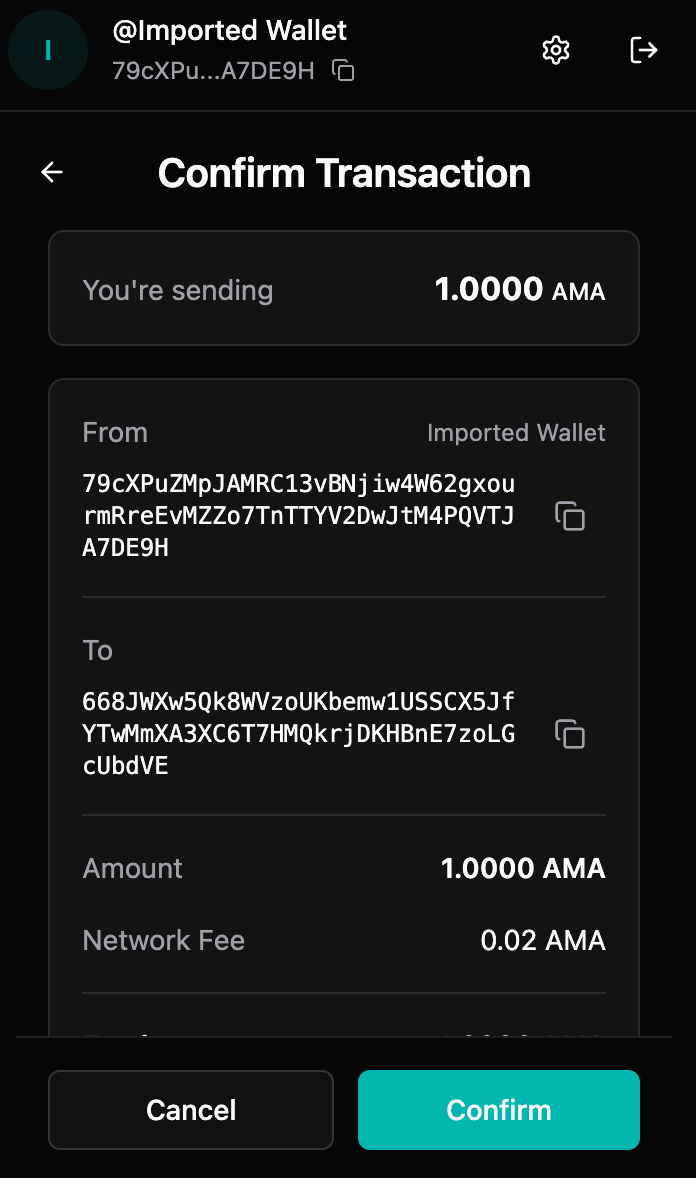
#### Step 4: Review Transaction
Before confirming, review:
* ✅ Recipient address (correct and complete)
* ✅ Amount (correct value)
* ✅ Token type (correct token)
* ✅ Your balance (sufficient funds)
* ✅ Network (Mainnet or Testnet)
#### Step 5: Confirm Transaction
1. Click **"Confirm"**
2. The extension will process your transaction
3. You'll see a "Processing" screen while the transaction is being submitted
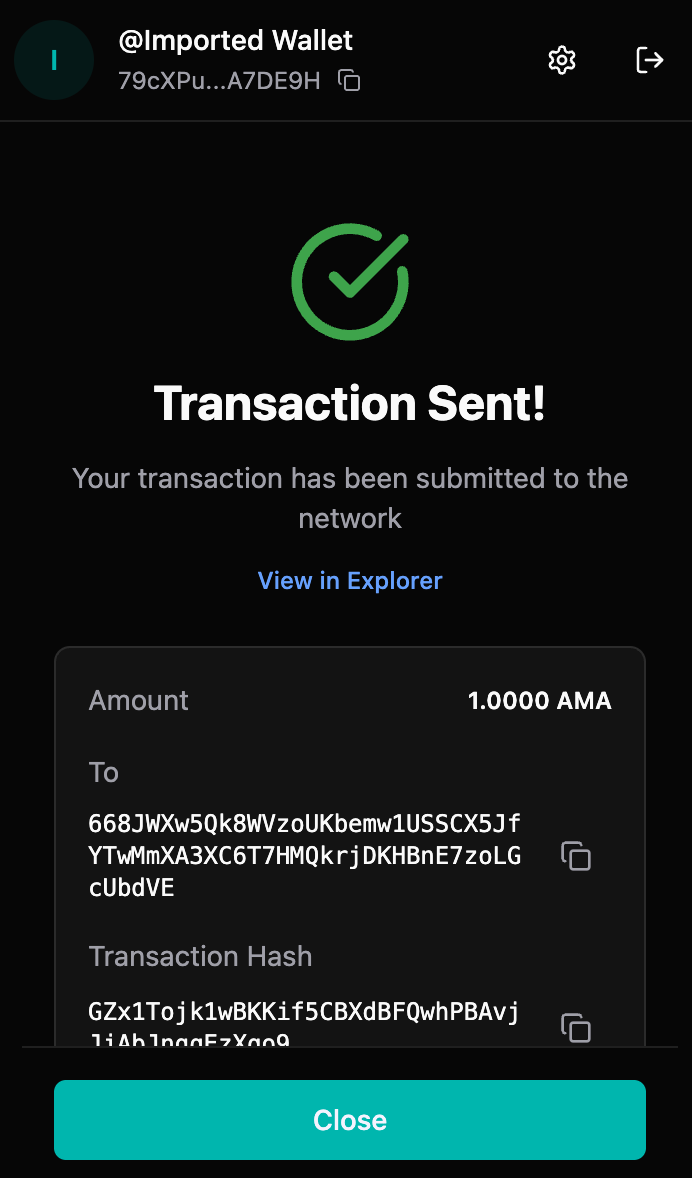
#### Step 6: Transaction Complete
Once processed, you'll see:
* ✅ Transaction hash (unique identifier)
* ✅ Success message
* ✅ Link to view transaction in explorer
* ✅ Option to return to dashboard
### Transaction Details
#### Transaction Hash
Every transaction has a unique hash (transaction ID) that:
* Identifies your transaction on the blockchain
* Can be used to track transaction status
* Can be shared with the recipient for verification
* Can be viewed in the blockchain explorer
#### Viewing in Explorer
Click **"View in Explorer"** to:
* See transaction details on the blockchain
* Verify transaction status
* Check confirmation status
* View transaction on the public ledger
### Transaction Fees
* Transaction fees are automatically calculated
* Fees are deducted from your balance
* Fee amount depends on network congestion
* Fees are typically minimal
### Transaction Status
Your transaction can have different statuses:
* **Pending**: Transaction submitted, waiting for confirmation
* **Confirmed**: Transaction included in a block
* **Failed**: Transaction failed (insufficient funds, invalid address, etc.)
### Security Tips
* ✅ Always verify the recipient address
* ✅ Double-check the amount before sending
* ✅ Start with a small test transaction for new addresses
* ✅ Verify you're on the correct network (Mainnet vs Testnet)
* ❌ Never send to addresses you don't trust
* ❌ Be cautious of phishing attempts asking for tokens
### Troubleshooting
#### "Insufficient balance" error
**Causes:**
* Not enough tokens in your wallet
* Transaction fees exceed available balance
* Network fees increased
**Solutions:**
* Check your current balance
* Reduce the amount you're sending
* Ensure you have enough for fees
#### Transaction stuck/pending
**Possible causes:**
* Network congestion
* Low transaction fee
* Network issues
**Solutions:**
* Wait for network confirmation
* Check transaction status in explorer
* Verify network connectivity
* Contact support if stuck for extended period
#### Wrong address entered
**Important**: Transactions cannot be reversed!
**If you haven't confirmed yet:**
* Simply cancel and re-enter the correct address
**If already sent:**
* Unfortunately, tokens sent to wrong addresses cannot be recovered
* Always double-check addresses before confirming
#### Transaction failed
**Common causes:**
* Invalid recipient address
* Insufficient balance
* Network error
* Contract execution error
**Solutions:**
* Verify recipient address format
* Check your balance
* Try again after checking network status
* Review error message for specific issue
### Best Practices
1. **Test First**: Send a small amount first when using a new address
2. **Verify Address**: Always double-check recipient addresses
3. **Check Network**: Ensure you're on the correct network
4. **Keep Records**: Save transaction hashes for your records
5. **Monitor Balance**: Keep track of your balance after transactions
### What's Next?
* [View your transaction history](/wallet/creating-a-wallet/chrome-extension-wallet/7.-transaction-history.md)
* [Receive tokens from others](/wallet/creating-a-wallet/chrome-extension-wallet/6.-receiving-tokens.md)
* [Configure network settings if needed](/wallet/creating-a-wallet/chrome-extension-wallet/9.-network-settings.md)