> For the complete documentation index, see [llms.txt](https://docs.ama.one/llms.txt). Markdown versions of documentation pages are available by appending `.md` to page URLs; this page is available as [Markdown](https://docs.ama.one/wallet/creating-a-wallet/chrome-extension-wallet/6.-receiving-tokens.md).
# 6. Receiving Tokens
Learn how to receive AMA tokens in your Amadeus wallet.
### Overview
Receiving tokens is simple - you just need to share your wallet address with the sender. This guide explains how to find and share your address.
### Finding Your Wallet Address
#### Method 1: From Header
1. Open the Amadeus Wallet Extension
2. Unlock your wallet if needed
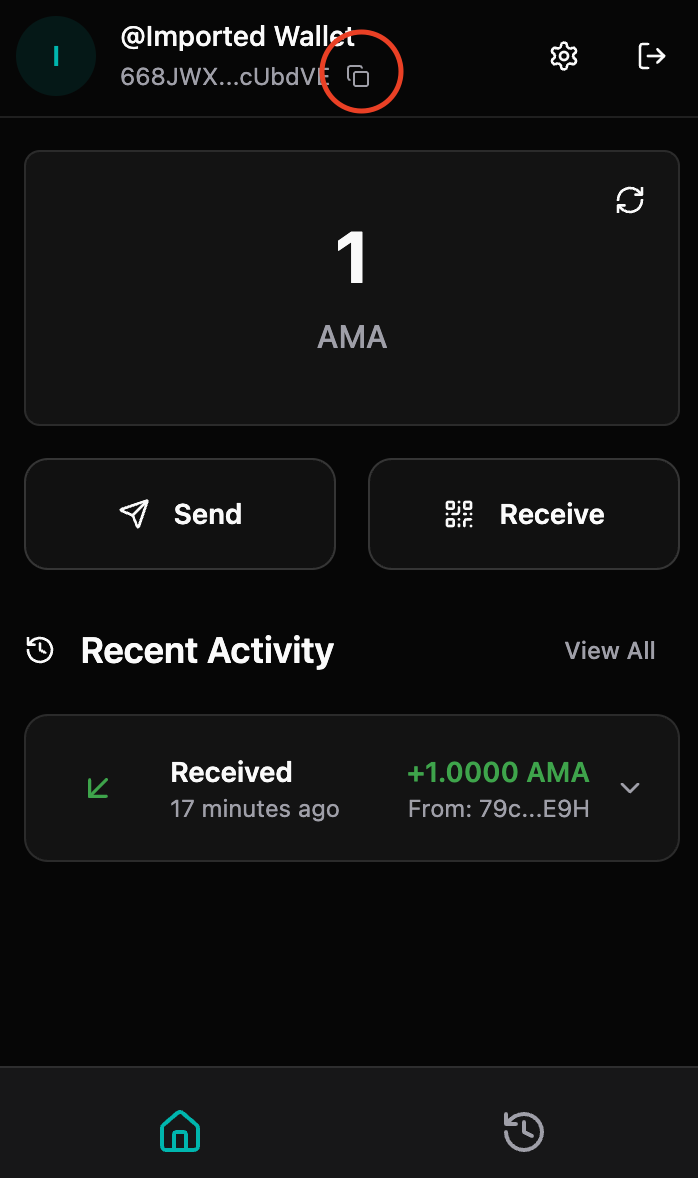
3. Your wallet address is displayed on the header
4. Click the **copy icon** next to your address to copy it
#### Method 2: From Receive Page
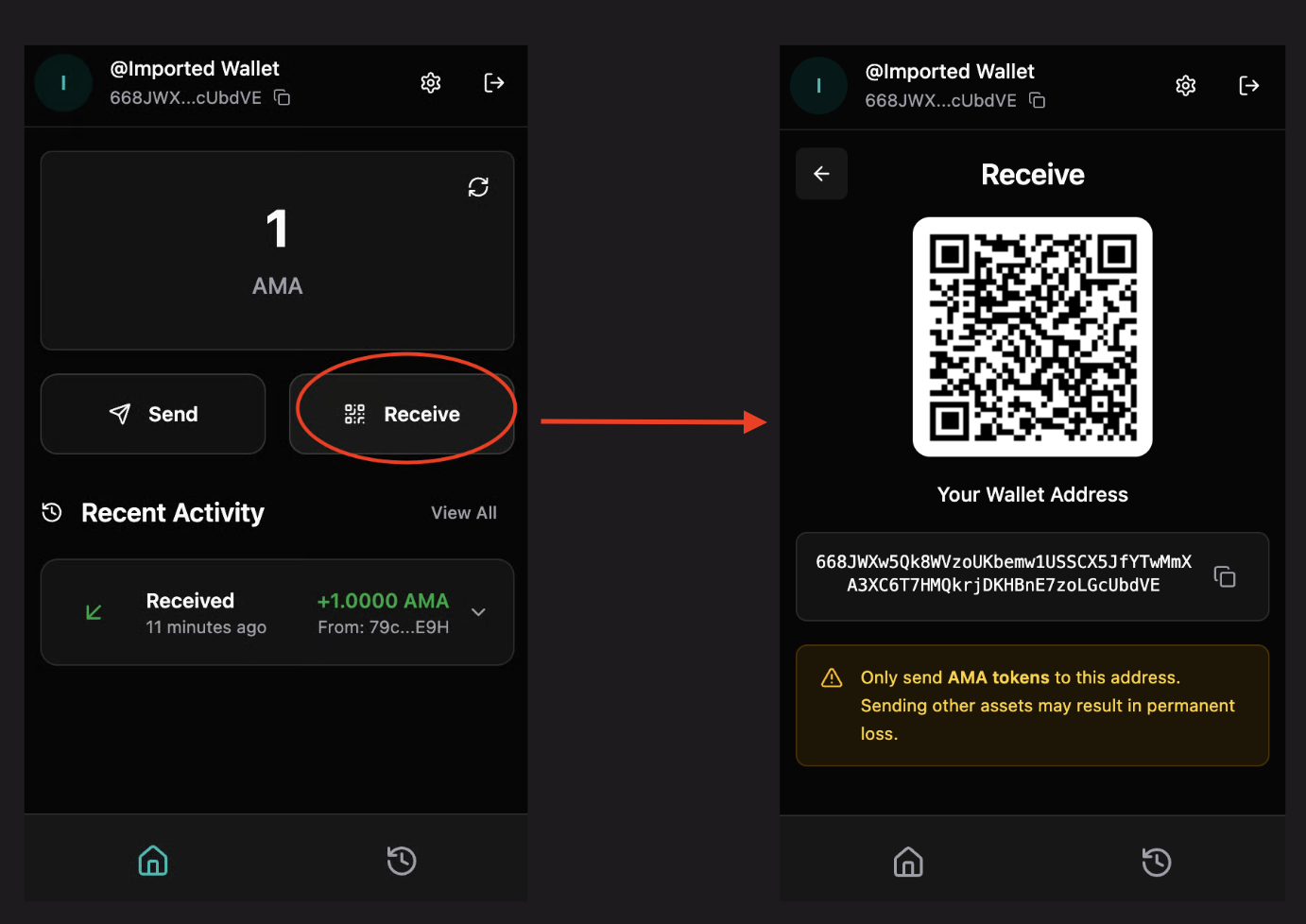
1. Click **"Receive"** in the navigation menu
2. Your wallet address and QR code will be displayed
3. Click **"Copy Address"** to copy your address
### Sharing Your Address
#### Option 1: Copy and Paste
1. Copy your wallet address (using the copy button)
2. Share it via:
* Email
* Messaging apps
* Social media
* Any communication method
#### Option 2: QR Code
1. Go to the **Receive** page
2. Show the QR code to the sender
3. They can scan it with their wallet app
4. This ensures accuracy and prevents typos
#### Option 3: Share QR Code Image
1. Take a screenshot of your QR code
2. Send the image to the sender
3. They can scan it from the image
### Address Format
Your wallet address:
* Is a long string of characters (Base58 encoded)
* Starts with specific characters depending on the network
* Is unique to your wallet
* Can be shared publicly (it's your public key)
**Example format:**
```
5KJvsngHeMoo884xkJ6Cyb5StvnRN6f9tYiqwqJzLpQq
```
### QR Code
The QR code contains:
* Your wallet address
* Can be scanned by other wallet apps
* Ensures accurate address entry
* Faster than manual entry
### Receiving Tokens
#### Step 1: Share Your Address
Share your wallet address or QR code with the sender using any method you prefer.
#### Step 2: Wait for Transaction
Once the sender initiates the transaction:
* You don't need to do anything
* Tokens will appear in your wallet automatically
* Transaction may take a few moments to confirm
#### Step 3: Verify Receipt
1. Check your balance on the dashboard
2. View the transaction in your transaction history
3. Click the transaction to see details
4. Verify the amount received matches what was sent
### Transaction Confirmation
Transactions typically confirm quickly, but:
* Network congestion can cause delays
* You'll see the transaction as "pending" until confirmed
* Once confirmed, balance updates automatically
### Security Considerations
#### Address Safety
* ✅ **Safe to share**: Your wallet address (public key) is safe to share publicly
* ✅ **No risk**: Sharing your address doesn't compromise your wallet security
* ✅ **Public information**: Addresses are meant to be shared
#### What NOT to Share
* ❌ **Never share your Seed64**
* ❌ **Never share your password**
* ❌ **Never share your private key** (if you have access to it)
#### Address Verification
When receiving tokens:
* Verify the sender's identity if receiving large amounts
* Double-check the amount matches expectations
* Confirm you're receiving on the correct network (Mainnet vs Testnet)
### Multiple Addresses
* Each wallet has one primary address
* You can create multiple wallets for different purposes
* Each wallet has its own unique address
* Consider using different wallets for different use cases
### Network Considerations
#### Mainnet vs Testnet
* **Mainnet**: Real tokens with real value
* **Testnet**: Test tokens with no value (for testing)
Ensure:
* You're receiving on the correct network
* The sender is using the same network
* Your address matches the network type
### Troubleshooting
#### Tokens not appearing
**Possible causes:**
* Transaction still pending
* Wrong network selected
* Transaction failed
* Address mismatch
**Solutions:**
* Wait a few moments for confirmation
* Check transaction status in explorer
* Verify network settings match sender's network
* Ask sender for transaction hash to verify
#### Wrong network
**If you received tokens on the wrong network:**
* Check your network settings
* Switch to the correct network
* Tokens should appear once on correct network
* Note: You cannot transfer tokens between networks directly
#### Address format error
**If sender reports address format error:**
* Verify you copied the complete address
* Ensure no extra spaces or characters
* Share QR code instead for accuracy
* Double-check address starts with correct characters
### Best Practices
1. **Verify Amount**: Always verify the amount received matches expectations
2. **Check Network**: Ensure you're on the correct network
3. **Use QR Code**: QR codes prevent address entry errors
4. **Keep Records**: Save transaction details for your records
5. **Verify Sender**: For large amounts, verify sender identity
### What's Next?
* [View your transaction history to see received tokens](/wallet/creating-a-wallet/chrome-extension-wallet/7.-transaction-history.md)
* [Send tokens to others](/wallet/creating-a-wallet/chrome-extension-wallet/5.-sending-tokens.md)