> For the complete documentation index, see [llms.txt](https://docs.ama.one/llms.txt). Markdown versions of documentation pages are available by appending `.md` to page URLs; this page is available as [Markdown](https://docs.ama.one/wallet/creating-a-wallet/chrome-extension-wallet/7.-transaction-history.md).
# 7. Transaction History
Learn how to view and understand your transaction history in the Amadeus Wallet Extension.
### Overview
The transaction history shows all your past transactions, including sends, receives, and dApp interactions. This helps you track your token movements and verify transactions.
### Accessing Transaction History
#### Method 1: From Navigation
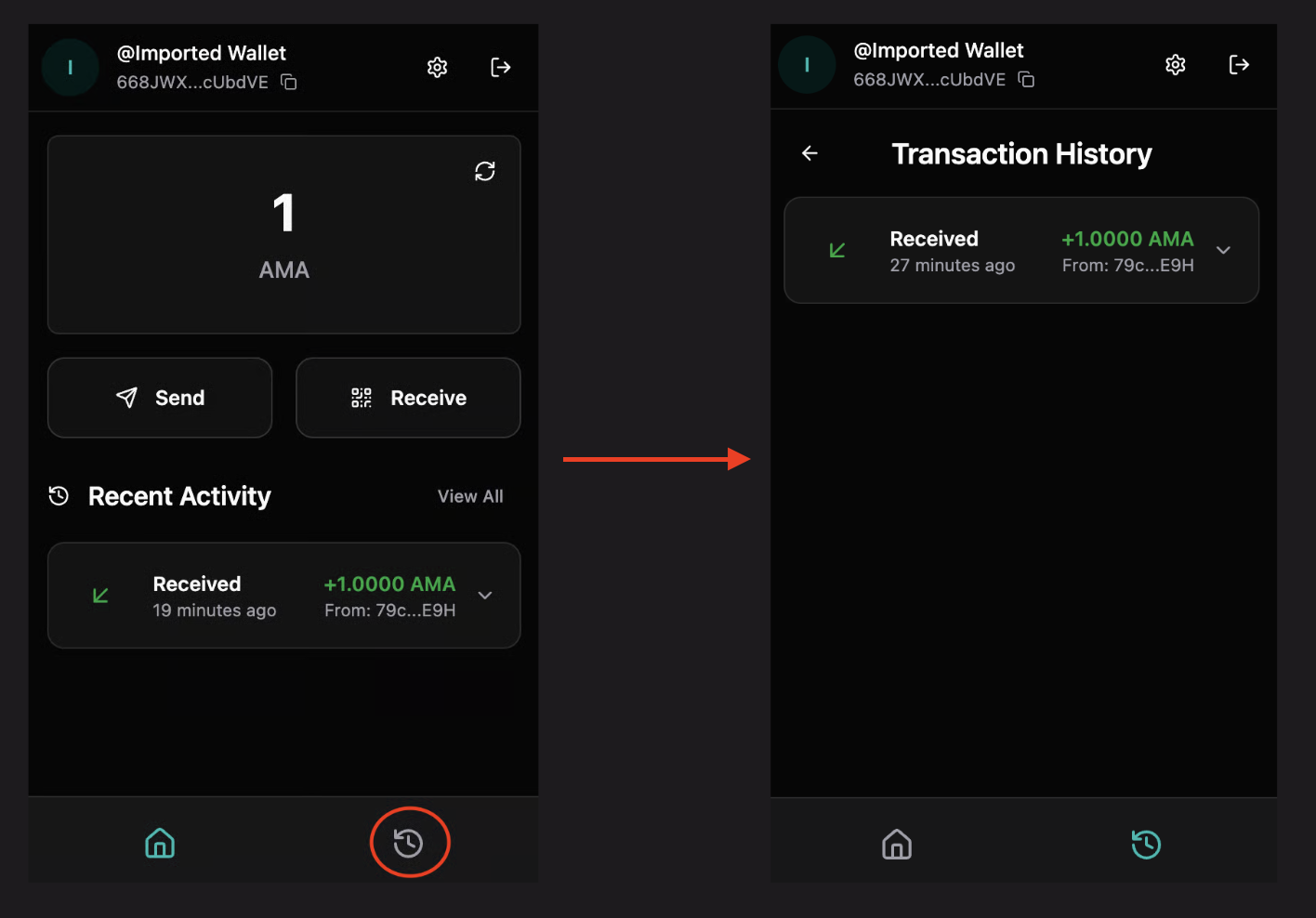
1. Open the Amadeus Wallet Extension
2. Ensure your wallet is unlocked
3. Click **"History"** in the navigation menu
#### Method 2: From Dashboard
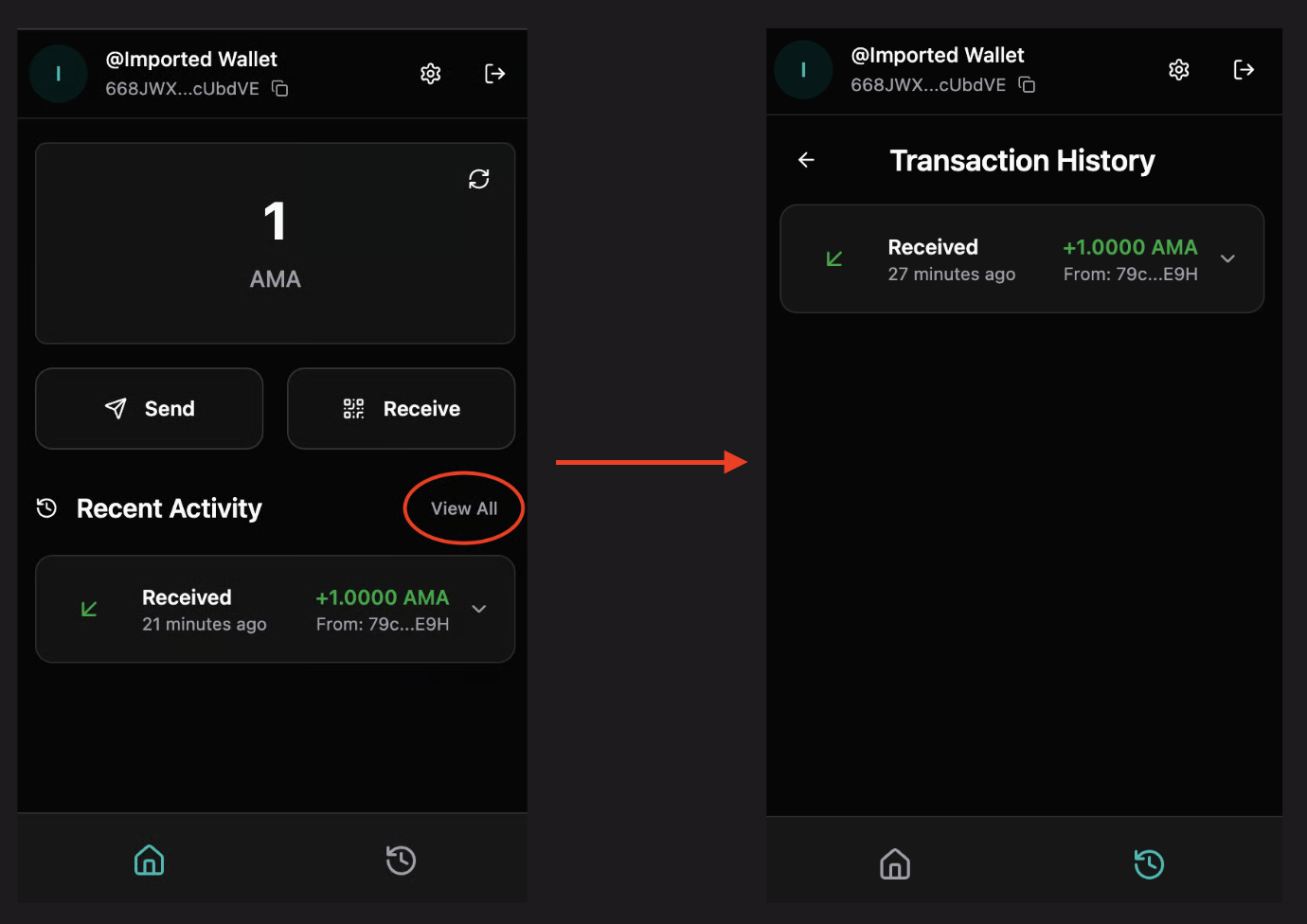
1. On your dashboard, scroll down to see recent transactions
2. Click **"View All"** to see complete history
### Transaction List View
The history page displays transactions in a list format showing:
* **Transaction Type**: Sent or Received
* **Amount**: Token amount transferred
* **Address**: Recipient (for sends) or sender (for receives)
* **Timestamp**: When the transaction occurred
* **Status**: Success or Failed
### Transaction Details
Click on any transaction to view detailed information:
#### Basic Information
* **Transaction Hash**: Unique identifier for the transaction
* **Status**: Success or Failed
* **Timestamp**: Exact time of the transaction
* **Block Slot**: Block number (if confirmed)
#### Transfer Details
* **From**: Sender's address
* **To**: Recipient's address
* **Amount**: Amount transferred
* **Token Symbol**: Token type (AMA, etc.)
#### Contract Information
* **Contract**: Contract address (if applicable)
* **Function**: Function called (e.g., "transfer")
### Transaction Status
#### Success
* ✅ Green badge indicating successful transaction
* Transaction confirmed on blockchain
* Tokens successfully transferred
#### Failed
* ❌ Red badge indicating failed transaction
* Transaction did not complete
* May show error reason
* Tokens were not transferred
### Viewing in Explorer
Each transaction can be viewed on the blockchain explorer:
1. Click the **external link icon** next to the transaction hash
2. Opens the transaction in the blockchain explorer
3. View full transaction details on the public ledger
4. Verify transaction on the blockchain
### Filtering and Sorting
#### Sorting Options
* **Recent First** (default): Newest transactions at top
* **Oldest First**: Oldest transactions at top
#### Filtering
* Filter by transaction type (Sent/Received)
* Filter by status (Success/Failed)
* Search by address or transaction hash
### Transaction Types
#### Sent Transactions
* Show outgoing token transfers
* Display recipient address
* Show negative amount (with minus sign)
* Red color indicator
#### Received Transactions
* Show incoming token transfers
* Display sender address
* Show positive amount (with plus sign)
* Green color indicator
#### dApp Transactions
* Transactions signed through dApps
* May show contract interactions
* Display contract and function details
### Understanding Timestamps
Timestamps show:
* **Relative time**: "2 hours ago", "3 days ago"
* **Absolute time**: Full date and time on hover
* **Block time**: Time when transaction was included in a block
### Transaction Fees
Transaction fees:
* Are deducted from your balance
* Shown in transaction details
* Vary based on network congestion
* Typically minimal amounts
### Privacy Features
#### Hide Amounts
You can hide transaction amounts for privacy:
1. Go to **Settings** → **Preferences**
2. Toggle **"Hide Amounts"**
3. Amounts will show as "\*\*\*\*\*\*" in transaction list
#### Balance Privacy
* Hide balances on dashboard
* Hide amounts in transaction history
* Useful for screenshots or screen sharing
### Troubleshooting
#### Transactions not showing
**Possible causes:**
* Network mismatch (Mainnet vs Testnet)
* Wallet not synced
* Network connectivity issues
**Solutions:**
* Verify network settings
* Refresh the extension
* Check internet connection
* Wait for sync to complete
#### Wrong network transactions
**If transactions appear on wrong network:**
* Switch to the correct network in Settings
* Transactions are network-specific
* Mainnet and Testnet have separate histories
#### Missing transactions
**If expected transactions don't appear:**
* Verify transaction was successful
* Check transaction hash in explorer
* Ensure correct network selected
* Wait for sync to complete
#### Transaction details not loading
* Check internet connection
* Verify blockchain explorer is accessible
* Try refreshing the page
* Check if transaction exists in explorer
### Best Practices
1. **Regular Review**: Check transaction history regularly
2. **Verify Large Transactions**: Always verify large transactions
3. **Keep Records**: Save important transaction hashes
4. **Check Status**: Verify transaction status if uncertain
5. **Use Explorer**: Use blockchain explorer for detailed verification
### Security Tips
* ✅ Verify all transactions match your expectations
* ✅ Check transaction details for accuracy
* ✅ Use explorer to verify on blockchain
* ✅ Report suspicious transactions immediately
* ❌ Don't ignore failed transactions
* ❌ Don't share transaction details carelessly
### What's Next?
* [Send tokens to create new transactions](/wallet/creating-a-wallet/chrome-extension-wallet/5.-sending-tokens.md)
* [Receive tokens to see incoming transactions](/wallet/creating-a-wallet/chrome-extension-wallet/6.-receiving-tokens.md)
* [Sign transactions from dApps](/wallet/creating-a-wallet/chrome-extension-wallet/8.-signing-transactions.md)